IP Cam Viewer Lite – Download & Setup on Android, iOS & PC
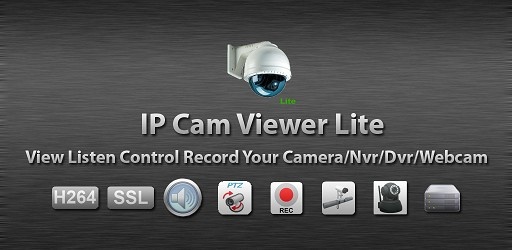
In today’s fast-paced digital age, security and remote monitoring have become essential. Whether you own a small business, run a home office, or simply want to keep an eye on your loved ones and property, having instant access to live camera feeds can be a game-changer. IP Cam Viewer Lite is one of the most trusted and versatile apps for viewing, controlling, and managing IP cameras, network video recorders (NVRs), and digital video recorders (DVRs) — all from your mobile or desktop.
This in-depth guide will walk you through everything you need to know about IP Cam Viewer Lite — from its top features to installation methods on Android, iOS, and PC.
What is IP Cam Viewer Lite?
IP Cam Viewer Lite is a free mobile application that lets you remotely access and control your IP cameras, DVRs, NVRs, and even webcams. It supports over 1600 devices from various manufacturers and is compatible with multiple video protocols including RTSP, ONVIF, and MMSH. Whether you’re monitoring your home, office, warehouse, or pets, this app provides a fast, secure, and reliable way to keep an eye on your property — anytime, anywhere.
It has won accolades such as Best Software in Utilities (2011) and continues to be a favorite among surveillance professionals and everyday users.
Key Features of IP Cam Viewer Lite
The app offers a variety of advanced features that make it a standout choice among IP camera applications:
1. Wide Device Compatibility
Supports 1600+ devices including brands like Hikvision, Dahua, Axis, Foscam, Amcrest, and more.
Compatible with DVRs, NVRs, IP cameras, and webcams.
2. Multi-Protocol Support
Works with RTSP, ONVIF, MMSH, and other standard protocols.
Provides support for MPEG4, H.265, H.264, and MJPEG video formats.
3. Advanced Camera Controls
Pan, tilt, and zoom (PTZ) support for compatible cameras.
Relay controls for turning lights or alarms on and off.
4. Privacy & Security
App-wide password protection.
SSL/HTTPS support for secure connections.
No cloud storage requirement — keeps your data private.
5. Flexible Viewing & Grouping
Group cameras by location or type.
Auto-sequence viewing for rotating between feeds.
6. Easy Backup & Transfer
Import/export camera settings via SD card, email, or Dropbox.
7. Widgets & Quick Access
Home screen and lock screen widgets for instant camera access.
Why Choose IP Cam Viewer Lite?
Here’s why thousands of users prefer IP Cam Viewer Lite:
Free to use with a rich set of features.
Supports almost every major IP camera brand.
Works across multiple platforms — Android, iOS, Windows, macOS (via emulators).
Strong focus on security and local control without forcing cloud subscriptions.
User-friendly interface that even beginners can navigate.
Pro Version Benefits
While the Lite version is powerful, upgrading to IP Cam Viewer Pro unlocks even more features:
No ads for a distraction-free experience.
Two-way audio for compatible devices.
In-app motion detection.
24/7 recording mode for continuous monitoring.
Chromecast and Android Wear support.
Embedded web server for remote control and Tasker automation.
How to Download & Install IP Cam Viewer Lite
The app is officially available for Android and iOS via their respective app stores. PC and Mac users can install it using an Android emulator.
For Android Devices
Open the Google Play Store on your device.
Search for "IP Cam Viewer Lite".
Tap Install and wait for the download to finish.
Open the app and accept the permissions.
Add your camera details (IP address, port, username, password) to start streaming.
[Direct Download Link – Google Play Store]
For iOS (iPhone & iPad)
Open the Apple App Store.
Search for "IP Cam Viewer Lite".
Tap Get and wait for the installation to complete.
Open the app, enter your camera credentials, and start monitoring.
[Direct Download Link – App Store]
For PC & Mac
Since the app is not natively available for Windows or macOS, you’ll need an Android emulator like BlueStacks, Nox Player, or LDPlayer.
Steps:
Download and install BlueStacks from its official website.
Launch BlueStacks and log in with your Google account.
Open Google Play Store inside the emulator.
Search for IP Cam Viewer Lite and install it.
Configure your cameras and start viewing.
How to Add a Camera in IP Cam Viewer Lite
Launch the app.
Tap the “+” icon to add a new camera.
Choose the camera type/brand from the list or use the auto-scan feature.
Enter your camera’s IP address, port, username, and password.
Save and test the connection.
Tips for Best Performance
Use wired connections for your cameras to avoid network drops.
Set a strong password for your devices to prevent unauthorized access.
Keep your app updated for the latest compatibility improvements.
Organize cameras into groups for faster navigation.
IP Cam Viewer Lite – Common FAQs
1. Is IP Cam Viewer Lite free?
Yes, it’s free to use with optional in-app purchases for upgrading to the Pro version.
2. Does it work without internet?
Yes, if you are connected to the same local network as the cameras.
3. Can I record video in the Lite version?
Recording is limited; for continuous 24/7 recording, upgrade to Pro.
4. Does it support audio?
Yes, many devices support one-way or two-way audio (Pro version required for 2-way).
5. Is it safe?
Yes, it supports encrypted SSL/HTTPS connections and does not force cloud storage.
Conclusion
IP Cam Viewer Lite is a reliable, secure, and feature-packed app for remote camera monitoring. Its broad device compatibility, advanced controls, and strong security features make it an excellent choice for both home and professional surveillance setups.
Whether you’re using Android, iOS, or PC, getting started with IP Cam Viewer Lite is straightforward. For those who want even more capabilities like 2-way audio, continuous recording, and no ads, upgrading to the Pro version is worth it.
Updates